SAP Digital Manufacturing (SAP DM) is designed to enhance productivity by automating and streamlining your manufacturing processes. It ensures seamless integration of data and processes between your shop floor and business applications, enabling comprehensive workflows from planning to execution with physical devices.
What’s inside this blog:
- Setting Up Shop Floor Connectivity: Establish communication between tag-based OPC UA server and SAP DM.
- Using the Production Connector and Cloud Connector: Enable seamless data flow.
- Reading Tags from Devices: Configure a production process in SAP DM to read/write tags from a device on your OPC UA server
Introduction to Production Connectivity Model
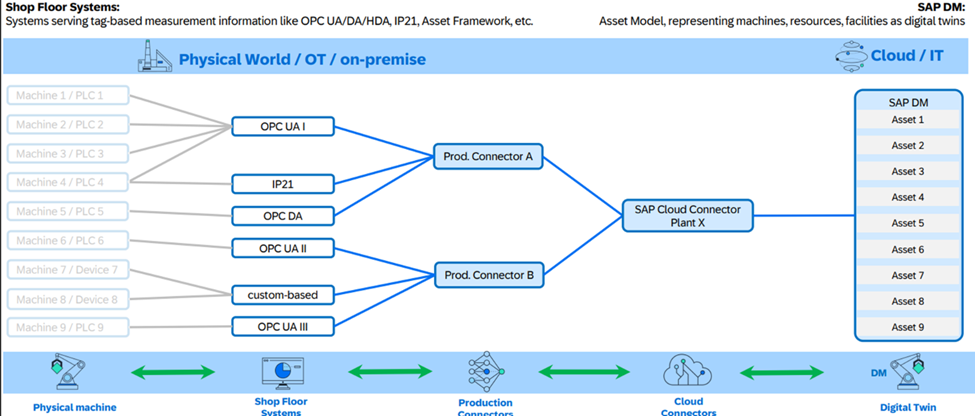
- The Production Connectivity Model allows linking physical devices with various systems, including SAP systems, shop floor systems, and third-party systems.
- The Production Connector and the Cloud Connector work together to establish a secure, stable, and traceable data communication channel between shop floor systems and SAP DM using Transport Layer Security (TLS).
Production Connectivity
Physical devices—such as machines, facilities, transportation, or other means that enable shop floor processes—are represented as assets in SAP DM. These assets have static properties (attributes) and dynamic properties (indicators). This representation allows you to manage assets in SAP DM just as you would handle physical devices in the real world. With established shop floor connectivity, you can integrate and fully automate manufacturing operations using production processes.
Prerequisites
Before connecting your shop floor to SAP DM, ensure the following:
- Subaccount Membership: You must be a member of the subaccount where you have subscribed to SAP DM on the SAP Business Technology Platform (BTP).
- Service Key Creation: Create a service key for your SAP DM service instance. For more details, refer to Prepare for API Integration.
- Destination Creation: Set up a destination in the subaccount. For more details, refer to Create a Destination for System Communication and Integration.
- Production Connector Installation: To install the Production Connector, follow these steps. For detailed instructions, refer to Installation of the Production Connector.Prerequisites:
Before installing Production Connector 2.2, ensure that the following two Microsoft .NET 8.0 runtimes are installed:.NET Desktop Runtime 8.0 (x86)
ASP.NET Core Runtime 8.0 (x86)Note: The x86 versions are required because Production Connector applications run as 32-bit programs.
- Cloud Connector Installation: Install the Cloud Connector. For more details, refer to Installing the Cloud Connector.
- KEPServerEX Installation: Download and install KEPServerEX from the demo link. Do not run it yet to start the initial setup.
Note: In this blog, we use KEPServerEX to set up an OPC UA server as an example. It is not recommended for production usage.
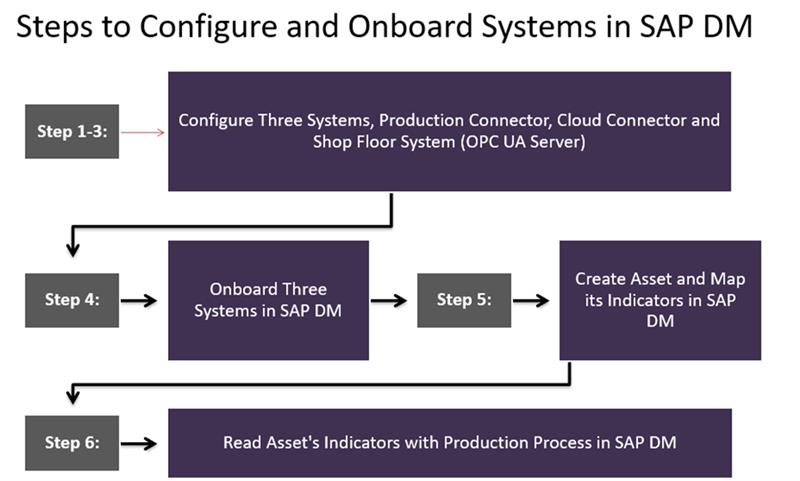
- Step 1 –To start, configure the Production Connector, which serves as the central on-premise middleware enabling communication between the shop floor and SAP DM.
- Step 2 – To use the Production Connector with SAP DM, configure the Cloud Connector following the assisted Configuration of the Cloud Connector.
- Step 3 – Configure the OPC UA Server
- Step 4 – After configuring the Production Connector, Cloud Connector, and OPC UA server, onboard them in SAP DM to establish shop floor connectivity.
- Step 5 – Create and Connect an Asset. Now that OPC UA server is connected to SAP DM, create an asset in SAP DM representing the equipment you created in Step 3. The asset’s indicators will connect to the its tags.
- Step 6 – Read Asset Indicators Using a Production Process. The equipment on OPC UA server now has a digital twin on SAP DM. You can read its tags using the built-in Choose Quick Deploy > Deploy and Activate.
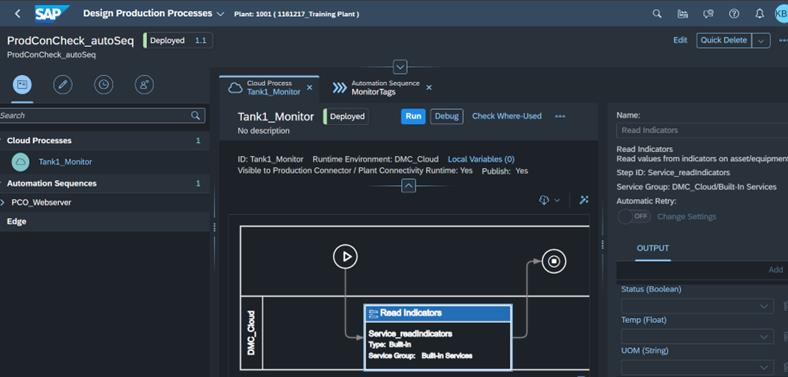
Demonstration of the setup by changing Tag Values and Running the Production Process:
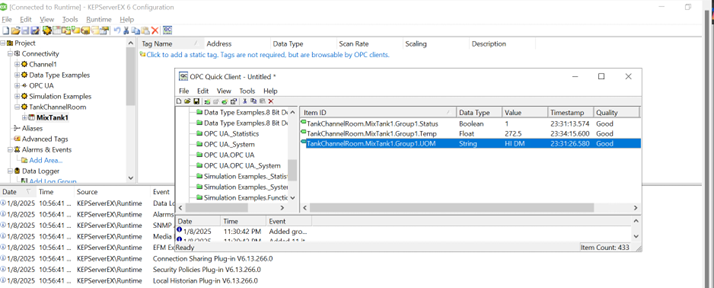
1.Change Tag Values in the KEPServerEX Configuration app, choose Tools > Launch OPC Quick Client. In the OPC Quick Client dialog, select the equipment and tag and choose Tools > Item > Synchronous Write. In the Write Value field, enter the desired value and choose OK.
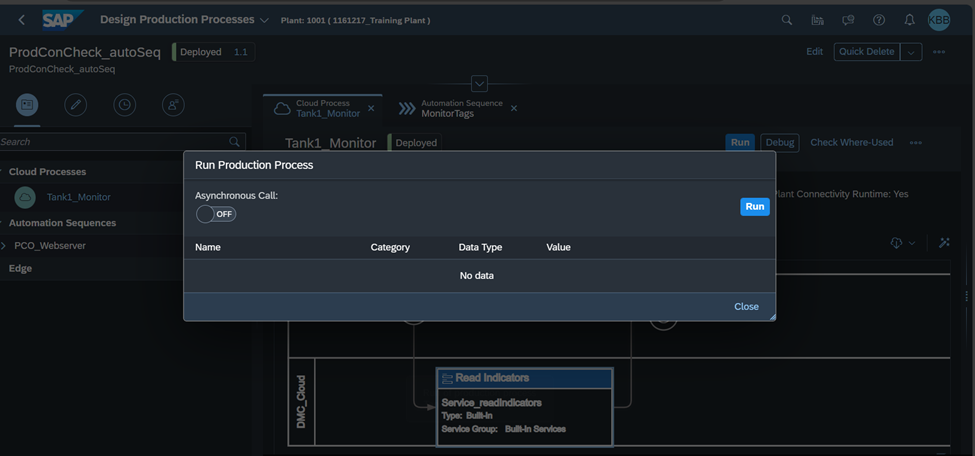
2. In production process in SAP DM, choose Run.
3. Open the Monitor Production Processes app and select the process instance just ran, to see its details.
4. Select the step Read Indicators and choose Process Parameters View.
5. The tag values are displayed under Output Parameters – Read Indicators.
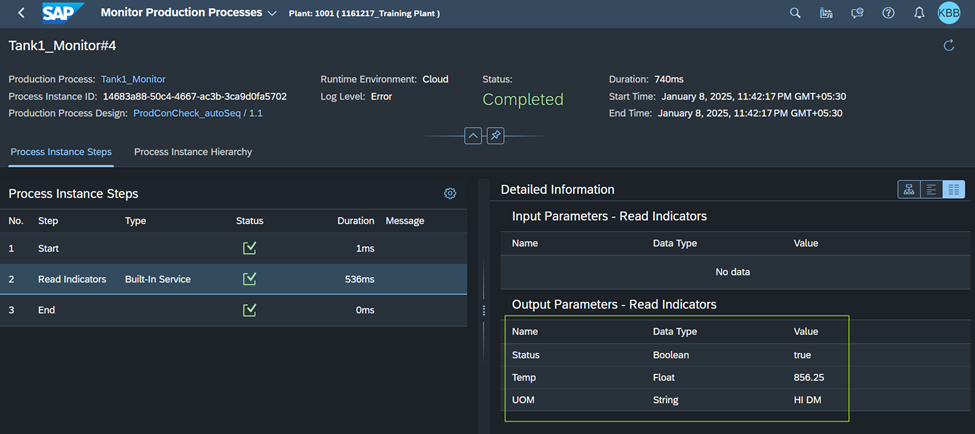
The set up for Production Connector, Cloud Connector, and local OPC UA server is completed and onboarded them in SAP DM, enabling connection to devices on the shop floor using the asset model enabling efficient Shopfloor Connectivity for Real-Time Data Exchange.